As I shared in a post late last year about Navigating YouTube Safe Search sometimes completely perfect educational videos can be blocked by the restricted browsing options we have enabled for student accounts. Often this occurs with teacher-created video content, such as screencasts. When a video is blocked students will see a screen like the one below when they are logged in with their NCS account at school or at home.
Google recently released a few new features to help combat this problem including the ability to provide teachers a content approval role. We turned this feature on earlier this week and are now piloting the ability for all NCS teachers and staff to approve videos that are accidentally blocked. When you are viewing YouTube videos you will see a new blue bar across the bottom of the viewing window (if you don't see the blue bar, check Chrome to make sure you have all of your YouTube-related extensions turned off). Towards the right side of the blue bar is an approve button.
With Great Power Comes Great Responsibility...
Should you choose to approve a video, please realize that it can be seen by all NCS students. If you accidentally approve something that should not be approved please let one of the IT staff know. We can find your record in the logs and remove the video from the whitelist.
Since we are still piloting this feature please let the IT staff know how it is performing for you and your students. Hopefully, it will make your ability to create and share high-quality instructional content that much easier.
Joe
Thursday, September 17, 2015
Tuesday, September 8, 2015
Understanding CAASPP Results
This spring all of our 3rd-8th, 10th and 11th graders participated in annual statewide testing. The results of our new testing program, CAASPP are starting to arrive and this post is an attempt to start demystifying some of the new terminology and data you will be hearing about.
Establishing a New Baseline
First off you might be wondering, "How did we do?" Overall, our preliminary results look great and share common patterns with school wide data across the region. However, it is important to remember that this year is really about establishing a new baseline. The Common Core standards and the Smarter Balanced assessments are very different than anything we have done previously. Tomorrow (September 9th) is the public release of all state, district, and school wide data. You can see the results on this website starting at 11am. We also have some preliminary extracts of student-level data we will be analyzing via future staff and cadre meetings. Later this month we will start receiving individual student reports to be mailed home.
New Test...New Results...New Terminology
With a new set of scores we have a new set of terminology to start learning as educators. To me one of the best places to start understanding this terminology is the Student Score Report. This is the document families will receive next month.
Establishing a New Baseline
First off you might be wondering, "How did we do?" Overall, our preliminary results look great and share common patterns with school wide data across the region. However, it is important to remember that this year is really about establishing a new baseline. The Common Core standards and the Smarter Balanced assessments are very different than anything we have done previously. Tomorrow (September 9th) is the public release of all state, district, and school wide data. You can see the results on this website starting at 11am. We also have some preliminary extracts of student-level data we will be analyzing via future staff and cadre meetings. Later this month we will start receiving individual student reports to be mailed home.
New Test...New Results...New Terminology
With a new set of scores we have a new set of terminology to start learning as educators. To me one of the best places to start understanding this terminology is the Student Score Report. This is the document families will receive next month.
- Overall Achievement Levels (Front Side)
- On the front side of the score report you will see an overall achievement level for both Math and English Language Arts. The overall achievement level really consists of three pieces of data
- Overall Score - A numerical value between 2000-3000
- Achievement Level - The numerical score falls into one of four achievement levels - Standard Not Met, Standard Nearly Met, Standard Met, Standard Exceeded
- Range of Possible Scores - A small black bar around the overall score which shows approximately where the student might score if they took the exam again.
- Claim Achievement Levels (Back Side)
- The overall achievement level for each content area is broken into area or claims on the back of the score report. For each claim area students can store Below Standard, At Standard, or Above Standard.
- For students who were in grades 5, 8, and 10 you will also see a CST science score at the bottom of the back side of the score report.
CDE has also put together this short video for students and families explaining the score report and you might find it useful as well.
Data to Inform Instruction
As you start delving into your own student data in the next few weeks you might begin to search for resources to assist in your own instructional practices. I predict that this will be an on-going conversation for all of us throughout this school year. :-) However, some places I would suggest you start are listed below
- SBAC Blueprints - These documents provide a nice overview of how claims were tested on the assessment. There is one for Math and one for ELA.
- Claim Achievement Level Descriptors - More in-depth descriptions of each claim level.
- Smarter Balanced Digital Library - The digital library contains lesson materials, assessments, and other tools for teachers to use.
Joe
Friday, September 4, 2015
Tech Tip #1 - Updates are Your Friends
Updates fall into three main categories
Mac Updates
All updates for the Apple operating system or any Apple programs can be found in the Mac App Store. When you launch this application you should be asked whether or not you want to run the updates right now. Occasionally you might be asked for the store@natomascharter.org password. If this happens you can find that password on this Google Doc (NCS Staff only).
Microsoft Office Updates
Word or Excel acting wonky? Try running Microsoft Office updates. When you launch Word or Excel the autoupdate feature should launch for you. If it does not you can always trigger it by clicking Help in any MS Office application.
Google Chrome Update
Have you ever noticed that your Google Chrome has three red or orange lines at the right side of the toolbar? That means it needs an update. You can complete this task by going to the Chrome Help Menu (chrome://help/). Sometimes, if you have waited too long Chrome may not update for you. If this happens, navigate to the Chrome website, download an updated version, and install the program.
Wednesday, August 26, 2015
Helping Students Research More Efficiently
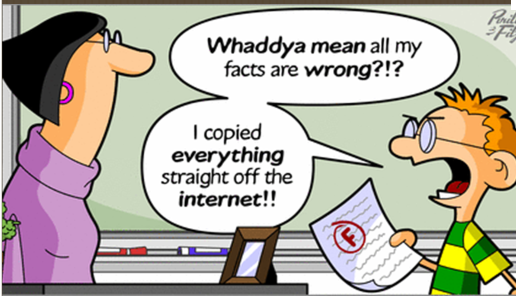
| Whaddya Mean All My Facts Are Wrong?!? Digital image. Techie Teacher 5280. N.p., n.d. Web. <http://techieteacher5280.blogspot.com/2011/12/evaluating-websites.html> |
Students know that Googling is a very imperfect way to do research, and yet they keep doing. It is understandable: Google is a part of our daily lives, and students are growing up in a world where we expect to get the one, right answer to any question within seconds.
But we all know that this premise is not true, especially in an educational setting where getting the right answer (if there is even one!) is important, but most important is to help students develop their critical thinking skills. Evaluating websites for credibility is crucial, and we do need to teach our students that skill; but we also need to teach them how to use research databases, as they, along with print resources, will be the only resources accepted in college.
The Sacramento County Office of Education was not able to bring CaliforniaLearns, a portal through which we had access to EBSCO, back this school year. Joe Wood and I are looking to potentially get our own access to a database, and I have set up several free trials to see which one you and your students prefer. Your feedback will be primordial in deciding what we get.
You will see here the list of 4 databases and the links to the free trials. I cannot post this information online as it would be broadcasting free access to those databases to people outside of NCS; but please take a look at them and let me know what you think. The trials end mid-September.
We also would like our students’ feedback! If you are giving students a research project in the next 3-4 weeks, I would suggest that you give different databases to different students to use, or use different databases for smaller projects, and ask students for their feedback as part of the assignment. Just forward me or Joe their comments.
Finally, to make this a little more fun: the first person (faculty or staff) to email me an article they found on ANY database on the topic of their choice, will get to pick one book from my pile of awesome books (some of which are not yet even published!), yours to keep!
Monday, August 24, 2015
Fancy Reading Logs & Formulas
At Star Academy 2nd grade students have an annual book reading challenge. This year it is 70 books by the end of the year with at least 10 being chapter books. Historically, Julie and Maria have asked their students to keep track of their books by completing a Google Form-based reading log. Periodically, they would sort the data by student name and create reports for each student. It was a Sunday night data-sorting and printing nightmare. This year we simplified the process using a few spreadsheet formulas and now each student has their very own live tab were they (or their parents) can easily track reading progress. Interested in doing something similar? Heres how...with screencasts!
Part 1 - Setting Up Separate Tabs
Basically you create a Google Form and create one entry for each student. From there you create a template on the Response spreadsheet using Data Validation and two basic formulas - Query and Count If. Once your template is set you clone a sheet for each student. Scared of the Query formula? No sweat! You can copy/paste the one from the screencast's description area.
Part 2 - Sharing Tabs with Individual Students
Unfortunately, Google does not (yet) have the ability to easily share individual tabs. However you can you can create a new sheet and use the ImportRange formula to provide a live view for each student. Its even easier than Part 1.
The process might sound complicated, but it is actually pretty simple. You might just need a quiet space and about 30-45 minutes to set it up for your entire class, but then you should be set for the year. Shout out to Ted Juch and Google Gooru for inspiring the idea for these reading logs.
Joe
Part 1 - Setting Up Separate Tabs
Basically you create a Google Form and create one entry for each student. From there you create a template on the Response spreadsheet using Data Validation and two basic formulas - Query and Count If. Once your template is set you clone a sheet for each student. Scared of the Query formula? No sweat! You can copy/paste the one from the screencast's description area.
Part 2 - Sharing Tabs with Individual Students
Unfortunately, Google does not (yet) have the ability to easily share individual tabs. However you can you can create a new sheet and use the ImportRange formula to provide a live view for each student. Its even easier than Part 1.
The process might sound complicated, but it is actually pretty simple. You might just need a quiet space and about 30-45 minutes to set it up for your entire class, but then you should be set for the year. Shout out to Ted Juch and Google Gooru for inspiring the idea for these reading logs.
Joe
Subscribe to:
Posts (Atom)